Personal
Process View or My RUP Tree
The tree browser that appears in the left pane of the RUP browser window lets you navigate the topics in the RUP. Initially it contains a set of default trees.
You can customize navigation by creating Personal Process View or My RUP trees to suit your process and environment. To start, you save a default tree as a Personal Process View or My RUP tree, then use it as a starting template. You can then create, customize, or delete topics in the Personal Process View or My RUP tree.
Topics
- Types of Trees
- Creating a Personal Process View or My RUP Tree
- Customizing a Personal Process View or My RUP Tree
- Deleting a Personal Process View or My RUP Tree
Types of Trees

The tree browser displays two types of trees:
- Default RUP trees, which are provided when you install RUP or publish
RUP from RUP Builder, give different views of the topics in the RUP Extended
Help. Default trees cannot be modified.
- Customizable Personal Process View or My RUP trees are created by you and can be modified to display topics that suit your specific process and environment.
|
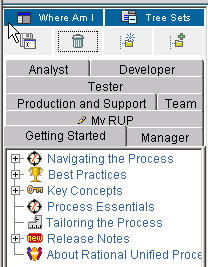
The tree browser contains a set of tabbed panels, and each panel contains a tree. This is called a tree panel. The tab on the panel displays the tree browser's title. The titles of default trees are gray; the titles of a customized (Personal Process View or My RUP) tree is gray with a pencil icon, indicating that it is modifiable. When you first start the RUP, the tree browser opens, showing a default tree. (In this example, it is the Getting Started tree.). |
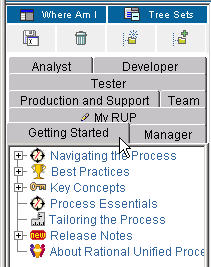 |
The tree panel consists of a toolbar that works on a tree basis, tabs for each tree panel, and a list of topics in each tree panel. The function of each of the tools on the toolbar is explained in the following table. |
|
To
|
Click
|
|---|---|
| show the location of the page you are viewing in the tree |  |
| show all trees |  |
| hide all trees except the selected one |  |
| save this tree using a different name |  |
| delete the Personal Process View or My RUP tree you are viewing |  |
| add a new topic to your Personal Process View or My RUP tree |  |
| add an existing topic from the main default tree into your customized Personal Process View or My RUP tree |  |
| view a topic in a tree |
|
The tree browser lets you to show and hide trees on other tabs so you can view only those trees that you want.
- To show all the tabs, click .
- To hide all other tabs except the one you are viewing, click .
Showing and hiding tree set states is persistent. The next time you start the RUP, you will see either the tree that you chose or all of the trees, depending on the state you selected the last time you used the RUP.
|
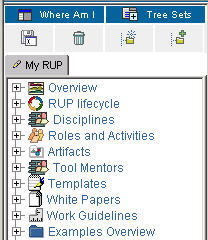
This illustrates a tree browser in which only one tree-Personal Process View or My RUP-is visible, which is how it was left the last time the RUP was used. |
 |
Creating a Personal Process View or My RUP Tree
You can create an unlimited number of Personal Process View or My RUP trees. The following example shows how to add a modifiable Personal Process View or My RUP tree.
|
Select the tree that you want to use as the template and click Save As. |
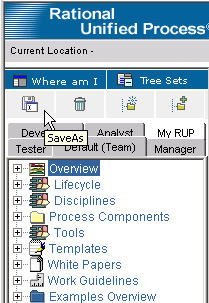 |
Click Analyst to set it as the template. |
|
The Save As dialog box appears, prompting you for a tree title for the Personal Process View or My RUP tree. |
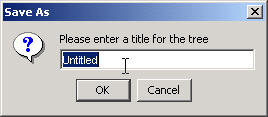 |
|
Type the title for your tree (for example, Tutorial RUP ) and click OK. |
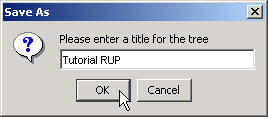 |
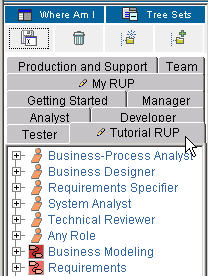 |
Tutorial RUP is added to the tree panel as a new tab. |
Customizing a Personal Process View or My RUP Tree
You can customize a Personal Process View or My RUP tree and its topics in a number of ways:
| Use the toolbar to: |
|
|---|---|
| Use the shortcut menu for selected topics to: |
|
| Another customization you might want to make: |
|
Adding a new topic to your Personal Process View or My RUP tree
|
|
To add a new topic, click Add New Node. |

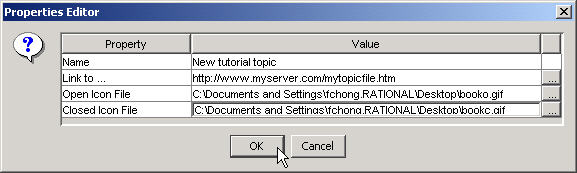
| The Properties Editor dialog box opens. Enter the various properties of this new topic. |
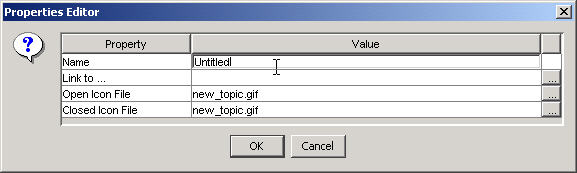 |
| Enter the various property values. Note that you can use the browse button on the far right to browse to file locations for local file links and icons. |
 |
|
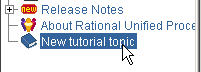
The new topic is added to end of the tree. |
 |
Note: You can also add new topics by dragging files from a file explorer, such as Windows Explorer, onto any topic in the tree. The topic name is initially the file name. You can change it as described in this section.
Changes to your Personal Process View or My RUP tree are saved as they are made.
Add an existing topic from a default tree to a
Personal Process View or My RUP tree
This section describes how to copy an existing topic from a default tree into your Personal Process View or My RUP tree.
|
|
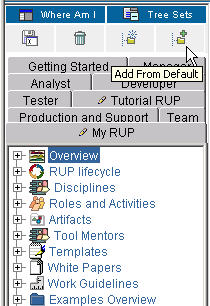
Click Add From Default. |
|
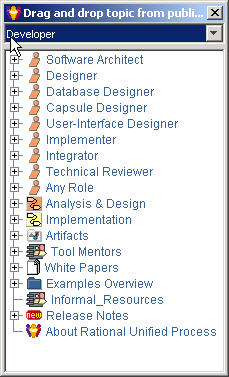
Drag any topic into your Personal Process View or My RUP tree. |
 |
|
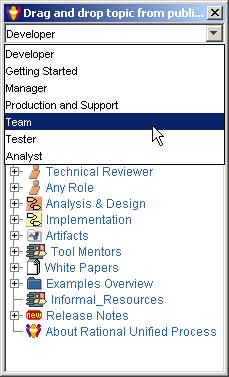
You can also choose the default tree from which to drag topics. Click in the list to select the default tree you want. The tree refreshes with the topics from the selected default tree. |
 |
Changes to your Personal Process View or My RUP tree are saved as they are made.
Inserting a new topic
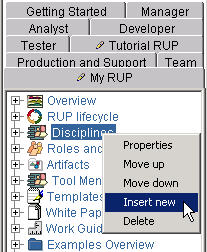 |
To insert a new topic into an existing one, right-click it. On the shortcut menu, click Insert new. The following example shows the insertion of a new topic (titled New tutorial topic) in Disciplines. |
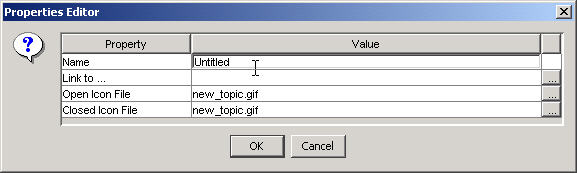
| The Properties Editor dialog box opens. |
 |
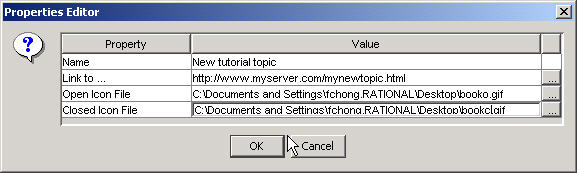
| Enter the various properties for this new topic. |
 |
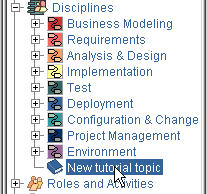 |
The new topic is inserted into Disciplines. |
Change the properties of a topic
|
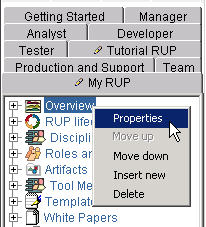
To change a topic's properties, right-click the topic (for example, Overview). On the shortcut menu, select Properties. |
 |
|
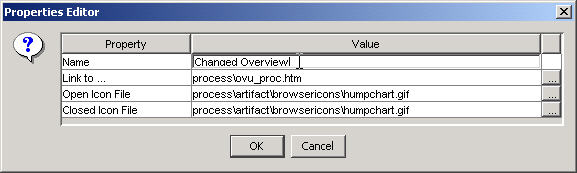
The Properties Editor dialog opens. In this example, the title of the topic Overview will be changed to Changed Overview. For the Name property, type Changed Overview in the Value field, and click Enter to commit the change. You can also cut and paste text values into the Value fields of this dialog box. Click OK to close this dialog box. |
 |
|
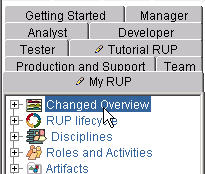
The name is changed on the tree. |
 |
Note: The Link to field in the Properties Editor dialog box lets you link to a URL or a file elsewhere in your system.
Move a topic within its parent
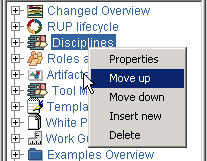
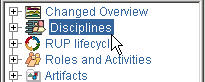
The position of a topic can be adjusted within its parent. In this example, the Disciplines topic will be moved up.
|
On the shortcut menu, click Move up. |
 |
|
The display changes to show you the new position of the Disciplines topic. |
 |
Changes to your Personal Process View or My RUP tree are saved as they are made.
Move a topic outside of its parent
You can move a topic to another tree by using the drag and drop feature.
- To start, click the topic and drag it to the new topic.
- Changes to your Personal Process View or My RUP tree are saved as they are made.
Delete a topic
- To delete a topic, select the one you want to remove and click Delete.
- Changes to your Personal Process View or My RUP tree are saved as they are made.
Change a topic's icon
- To change the icon for any topic listed in the tree browser, drag an icon file onto the topic or use the Properties Editor to change the icon name. An icon file is a .gif, .jpg, or .bmp file. The new icon replaces the old one.
- Changes to your Personal Process View or My RUP tree are saved as they are made.
Deleting a Personal Process View or My RUP Tree
The following figures illustrate how to delete a Personal Process View or My RUP tree.
|
|
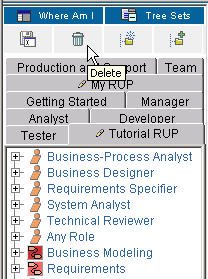
Select the tree to delete (in this example, Tutorial RUP). Click the Tutorial RUP tab, and then click Delete. |
|
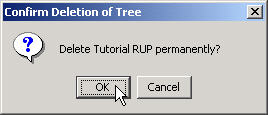
The Confirm Deletion of Tree dialog box
prompts you to continue.
|
 |
|
|
The Tutorial RUP tree is removed from the display of tabs in the Tree panel. |